
If you've just received your TP-Link EAP access point and want to connect it to your Fydelia guest WiFi setup, you're in the right place. This guide walks you through every step of the process using the TP-Link Omada app from installation to a fully adopted, Fydelia-managed device.
"The Fydelia controller runs on a fully managed, cloud-hosted Omada SDN platform. This means your access points are always up to date, always visible, and always under your control, no on-site controller hardware required."
- Fydelia Team
Before you begin, make sure your EAP access point is powered on and connected to your network via Ethernet. You'll also need your Fydelia login credentials to hand. The whole process takes around five minutes.
Step-by-step guide
Download and open the TP-Link Omada app. Available on both iOS and Android, the Omada app is your mobile control centre for managing access points. Once installed, open it and you'll land on the home screen shown below.
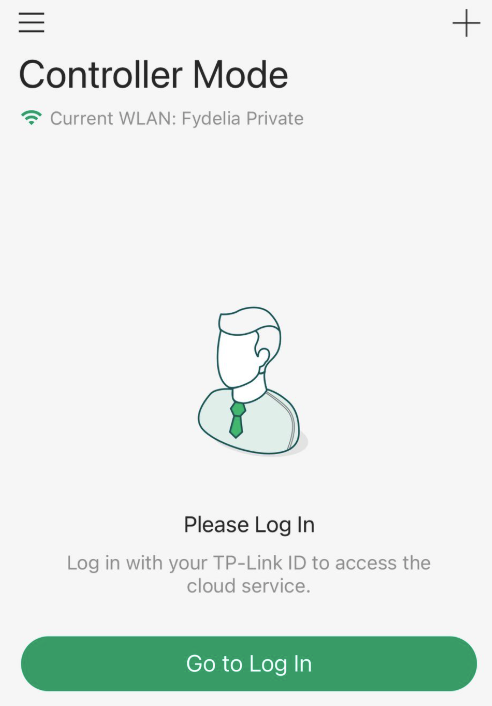
Tap the + button to begin adding a new controller. You'll find this in the top-right corner of the home screen.
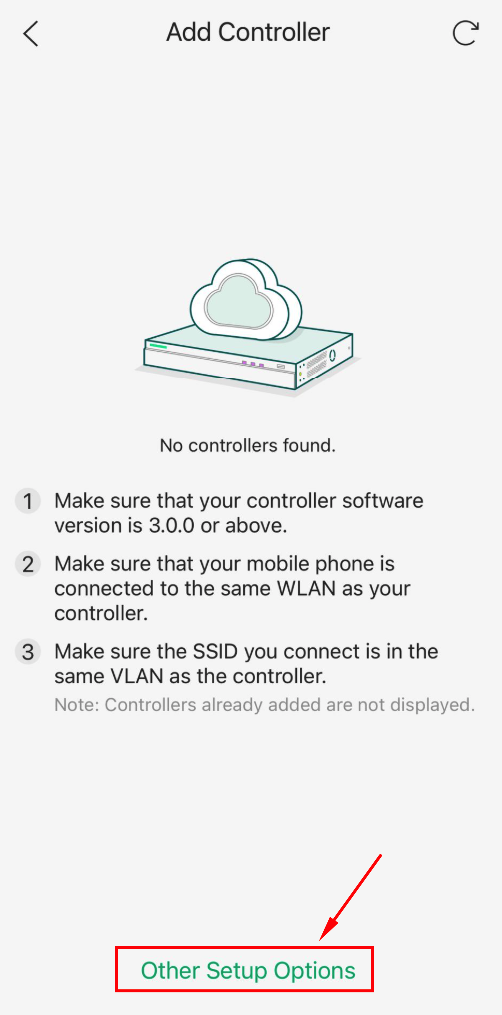
Select "Other Setup Options" from the list of setup methods. This allows you to connect to an existing controller by URL rather than setting one up from scratch.
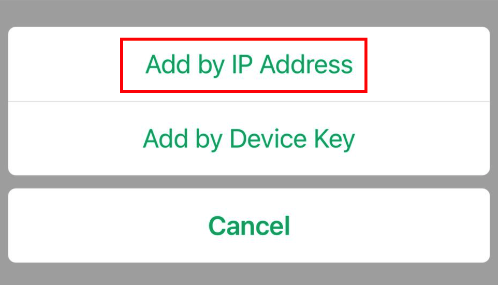
Choose "Add by IP Address". This method lets you specify the exact URL and port for your Fydelia controller instance.
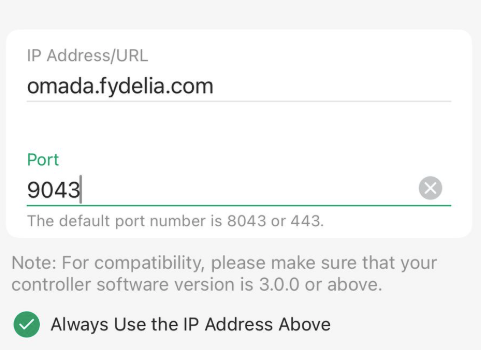
Enter the Fydelia controller URL and port. In the host field, type omada.fydelia.com and set the port to 9043. Tap Continue to proceed.
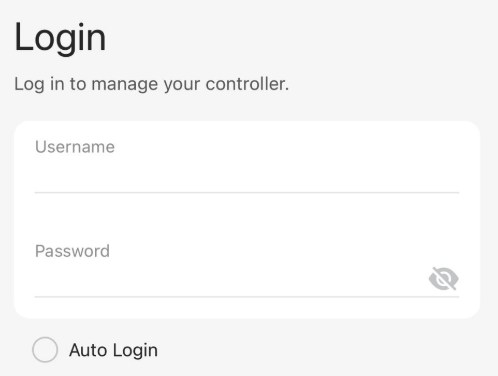
Sign in with your Fydelia credentials. Use the same username and password you use to log in to the Fydelia dashboard. Tap Log In to authenticate.
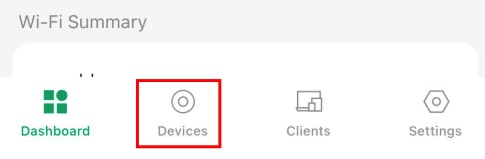
Navigate to "Devices". Once logged in, tap the Devices tab to see all hardware associated with your Fydelia controller.
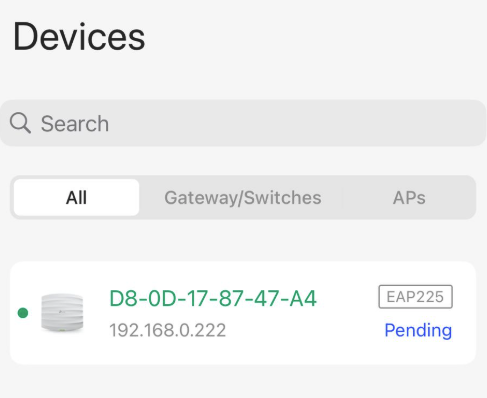
Find your EAP access point in the list. Your newly connected access point should appear here with a status of Pending. If it doesn't show immediately, give it a moment and pull down to refresh.
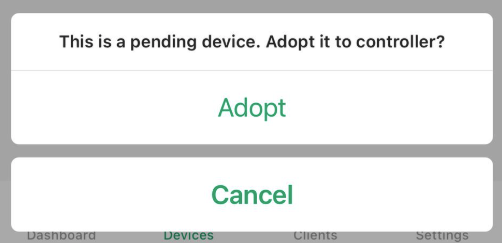
Tap "Adopt" next to your device. This tells the Fydelia controller to take ownership of the access point and begin provisioning it with your configuration.
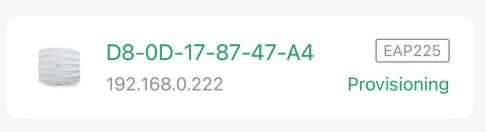
Wait for provisioning to complete. The access point will go through a short adoption and configuration process. You'll see its status update in real time as the controller pushes your settings across.
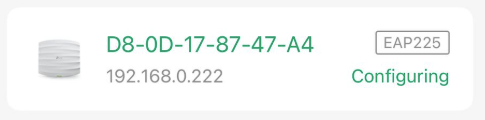
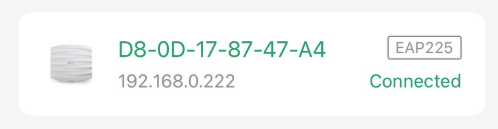
You have now successfully linked your TP-Link EAP access point to the Fydelia controller. Your access point is now fully managed, and your guest WiFi splash page will be served automatically to anyone who connects.
If you run into any issues during adoption, check that your access point is on the same network as the device running the Omada app, and that port 9043 is not blocked by your firewall. For further help, reach out to the Fydelia support team.
Get started
Ready to power your guest WiFi?
Set up your splash page, connect your access points, and start collecting guest data, and all in a free 14-day trial.